Watch sTV on any screen you own.
sTV is my personal Emby server. This page walks you through getting it on your phone, TV, streaming stick or computer — it takes about 5 minutes. You'll need the username and password I sent you.
Your connection info
Every app asks for the same three things. Keep this handy — tap Copy to grab the address.
Type the address exactly as shown — including https:// at the front and no www. If an app has only one box, put the full address in it. If it has separate Host and Port boxes, use the address for Host and 443 for Port.
Step-by-step guides
What are you watching on?
Pick your device and I'll show you exactly what to tap.
Web browser
The quickest way in — nothing to install. Works in Chrome, Edge, Safari and Firefox on computers, phones and tablets.
- Open the server in your browser
Go to https://emby.baylorlab.com — or just press Watch in your browser now at the top of this page.
- Sign in to sTV
You'll land on a page that says “Sign in to sTV”. Enter the username and password I gave you, then click Sign In.
- Start watching
Browse Movies, TV Shows and the other libraries from the home screen and hit play.
- Bookmark it
Save the page as a bookmark (or “Add to Home Screen” on a phone) so it's one tap next time.

iPhone & iPad
Install the free Emby app, point it at my server once, and it'll remember from then on.
- Install Emby
Open the App Store, search for “Emby” and install the app by Emby LLC (green diamond icon).
- Open the app and add a server
sTV won't show up on its own because it's not on your home network. Tap Add Server (sometimes shown as a + or Connect manually).
- Enter the connection info
- Host: https://emby.baylorlab.com
- Port: 443
Then tap Connect.
- Sign in
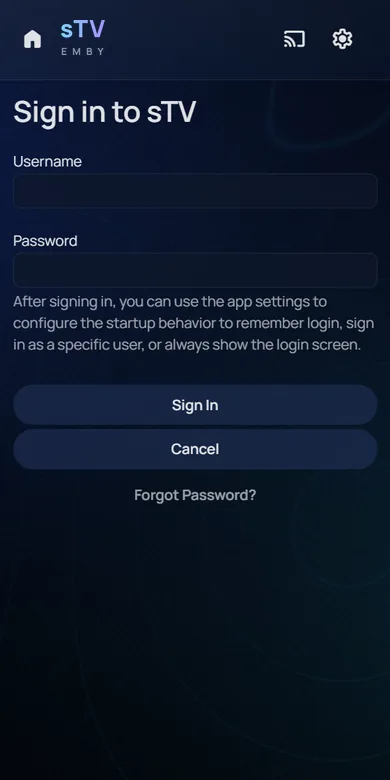
The “Sign in to sTV” screen appears. Enter your username and password and tap Sign In.
Android phone & tablet
Same idea as iPhone: install Emby, add my server manually, sign in.
- Install Emby
Open the Google Play Store, search for “Emby” and install Emby for Android.
- Add the server manually
When the app opens it looks for servers on your Wi-Fi and won't find mine. Tap Add Server or Connect manually.
- Enter the connection info
- Host: https://emby.baylorlab.com
- Port: 443
Tap Connect.
- Sign in
Enter your username and password on the “Sign in to sTV” screen.
Amazon Fire TV & Fire Stick
Use your remote to type — it's slow, so double-check the address before pressing Connect.
- Find the app
From the Fire TV home screen choose Find → Search, type “Emby”, and select Emby for Fire TV. Choose Get / Download.
- Open Emby and choose to connect manually
Select Add Server / Connect Manually.
- Enter the connection info
- Host: https://emby.baylorlab.com
- Port: 443
- Connect and sign in
Select Connect, then sign in with your username and password.
Android TV & Google TV
Chromecast with Google TV, Google TV Streamer, NVIDIA Shield, Sony, TCL, Hisense and other Android/Google TV sets.
- Install Emby
Open the Google Play Store on the TV (or say “Search for Emby” with the voice button) and install Emby for Android TV.
- Choose Add Server
If sTV isn't listed, select Add Server / Connect Manually.
- Enter the connection info
- Host: https://emby.baylorlab.com
- Port: 443
- Connect and sign in
Select Connect, then enter your username and password.
Roku
Works on Roku sticks, boxes and Roku-powered TVs.
- Add the Emby app
Press Home on the remote, choose Search, type “Emby”, select the official Emby app and choose Add app.
- Open Emby and choose Manual / Add Server
If the server list is empty, pick Manual or Add Server.
- Enter the connection info
- Host: https://emby.baylorlab.com
- Port: 443
- Secure connection / HTTPS: ON (if shown)
- Connect and sign in
Confirm, then log in with your username and password.
Apple TV
Emby has a native Apple TV app.
- Install Emby
Open the App Store on the Apple TV, search for “Emby” and choose Get.
- Add the server
Open Emby and select Add Server / Connect Manually.
- Enter the connection info
- Host: https://emby.baylorlab.com
- Port: 443
- Connect and sign in
Select Connect, then sign in.
Samsung, LG & other Smart TVs
Most newer Samsung (Tizen) and LG (webOS) TVs have an Emby app. If yours doesn't, the TV's web browser works as a backup.
- Install Emby from the TV's app store
Samsung: Apps → search “Emby”. LG: LG Content Store / Apps → search “Emby”. Install it.
- Add the server
Open Emby and choose Add Server / Connect Manually. Enter Host https://emby.baylorlab.com and Port 443, with secure/HTTPS turned on if the option exists.
- Sign in
Use your sTV username and password.
- No Emby app? Use the browser
Open the TV's web browser and go to https://emby.baylorlab.com, then sign in. (A Fire Stick or Roku plugged into the TV gives a much better experience if the TV is older.)
Troubleshooting
Something not working?
These fix almost every problem. Tap a question to open it.
“Unable to connect” or “Server not found”
- Check the address letter by letter: https://emby.baylorlab.com — no spaces, no www, no extra slash at the end.
- Make sure the Port is 443, not the default 8096.
- If there's a Secure / HTTPS / SSL switch, turn it on.
- Open any other website on the device to confirm the internet is working.
- Try the browser link on your phone. If that works, the server is up and the problem is in the app settings.
My username or password doesn't work
It connects, but videos buffer or stutter
Try these in order. The first ones give the best picture and are easiest on my server.
- Use the highest quality. During playback, open the settings (gear) icon and set Quality to the top option (Max or the highest number). That plays the file as it is, with no extra work for the server.
- Give it a better connection. Plug the TV or streaming box into Ethernet, or move closer to your router. A quick test at fast.com helps: about 25 Mbps or more handles HD, 50 Mbps or more for 4K.
- Restart the app or device — streaming sticks especially benefit from a reboot.
- Last resort: lower the quality. On a slow connection (hotel Wi-Fi, phone data), choosing 8 Mbps or 4 Mbps will stop the pausing, but it makes my server convert the video while you watch. Switch back to the highest setting when you're on a good connection.
It works at home but not on hotel, work or school Wi-Fi
I see a security or certificate warning
Still stuck? Try a fresh start
- Close the Emby app completely and reopen it.
- Restart your phone, TV or streaming stick.
- Unplug your router for 30 seconds and plug it back in.
- Still nothing? Send me a message with a photo of the error.
Support
Need a hand?
Send me a message and I'll get back to you. The more you tell me, the faster I can fix it.
- Goes straight to me — no account needed
- Tell me which device you're using
- Attach a photo or screenshot of any error
Message sent
Thanks! I'll get back to you soon.